

A home router carries work traffic as well as personal use. The organization may not own it, but it can still give staff a manageable set of checks and a clear support route. The goal is a maintained home connection with sensible account and device settings.
Understand the idea
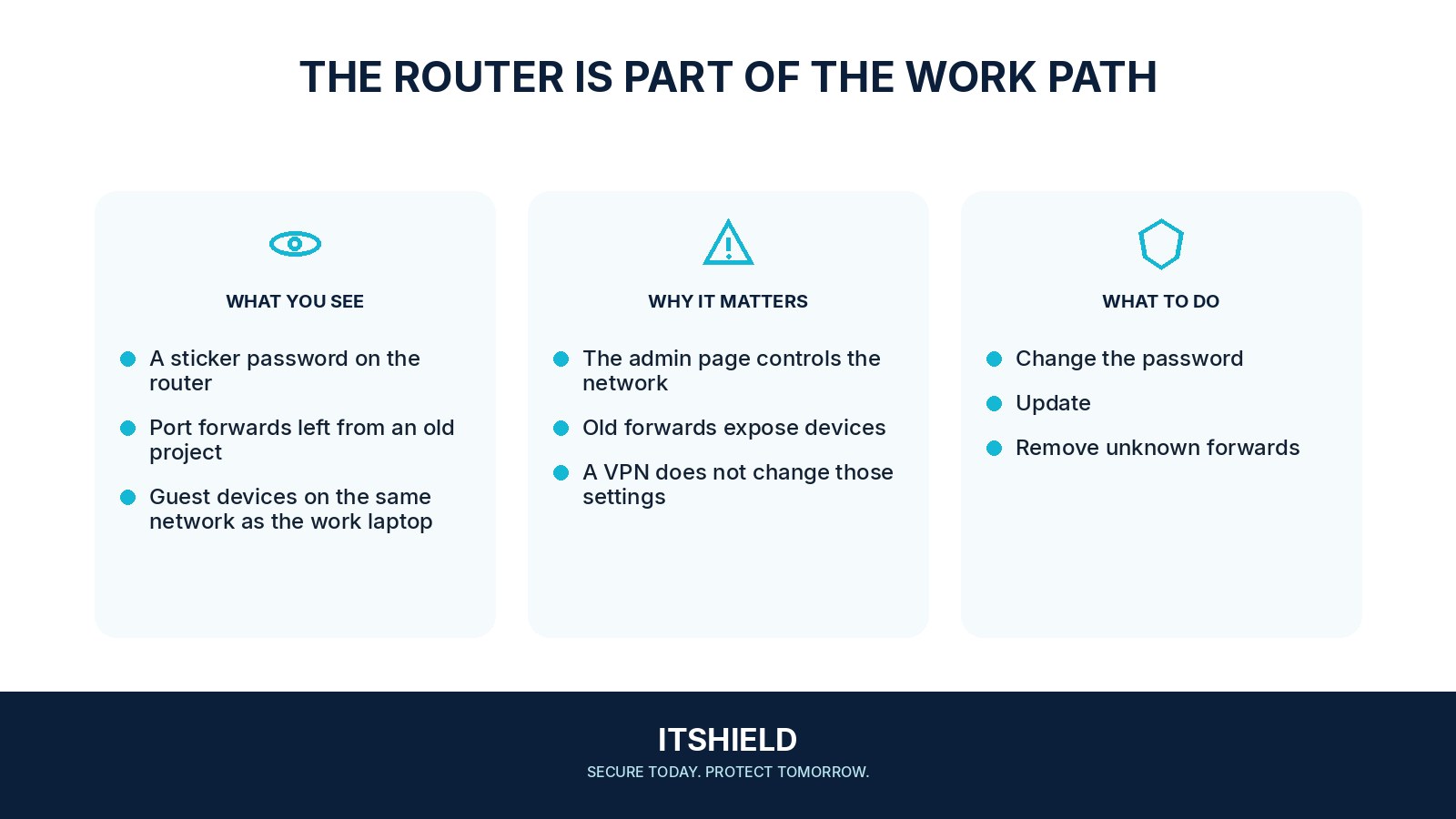
Check the router’s supported software, administrator password, Wi-Fi protection, and remote-management settings. Separate the administrator login from the Wi-Fi password. Use the provider’s verified instructions and avoid changes that the household cannot recover from. The work device and work accounts still need their own protection.
- Owner
Know who manages and updates the router.
- Boundary
Review guest or device separation and management access.
- Maintenance
Keep credentials, updates, and recovery arrangements usable.
A practical example
Imagine a remote worker discovering that their router no longer receives updates. They discuss replacement with the service provider and the organization’s support team. Meanwhile, the work laptop remains updated and uses the approved sign-in and remote-access process.
What to do next
- Use supported firmware and the official update mechanism.
- Protect administrator access with a unique credential and disable unnecessary remote administration.
- Use a supported secure Wi-Fi configuration and a strong unique network password.
- Separate guest or less-trusted household devices where the router supports an appropriate arrangement.
- Keep the work device updated, screen-locked, and managed according to organizational policy.
- Use approved remote access; do not expose a work computer's remote desktop directly to the internet for convenience.
How to check the result
Confirm that the connection still works after approved changes and that management is reachable only as intended. Record who to contact if a household change disrupts work access.
The work laptop shares a network with cameras and smart devices.
Review what those devices can reach and whether the router supports appropriate separation. Coordinate with your organization’s support team rather than making disruptive changes blindly.
Sources and useful guides
The following resources provide background and more detailed guidance. Use the sections that match your service and situation.