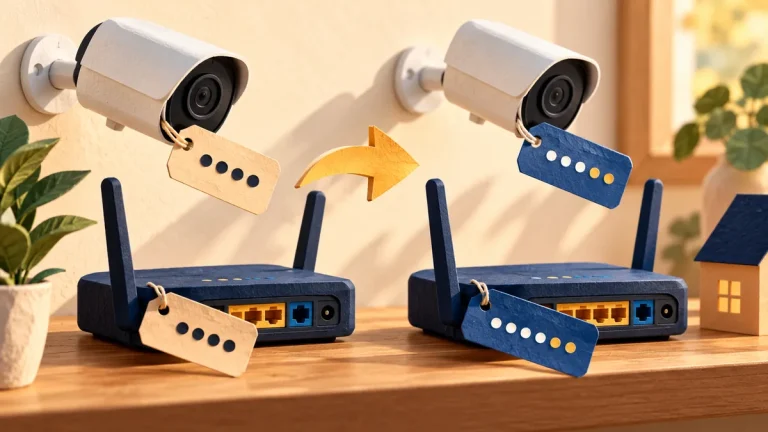
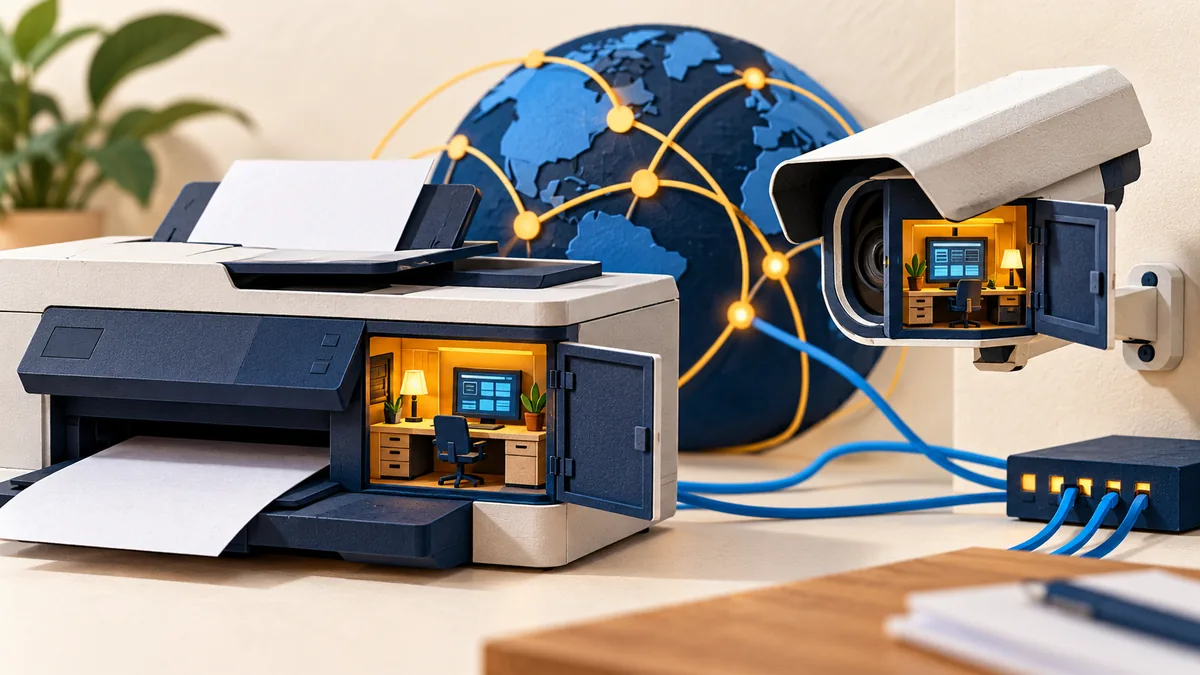
Printers, cameras, and meeting-room devices are easy to overlook because they do not look like ordinary computers. They still have software, accounts, and management pages. An unmanaged device can become an unnecessary access route or reveal information it processes.
Understand the idea
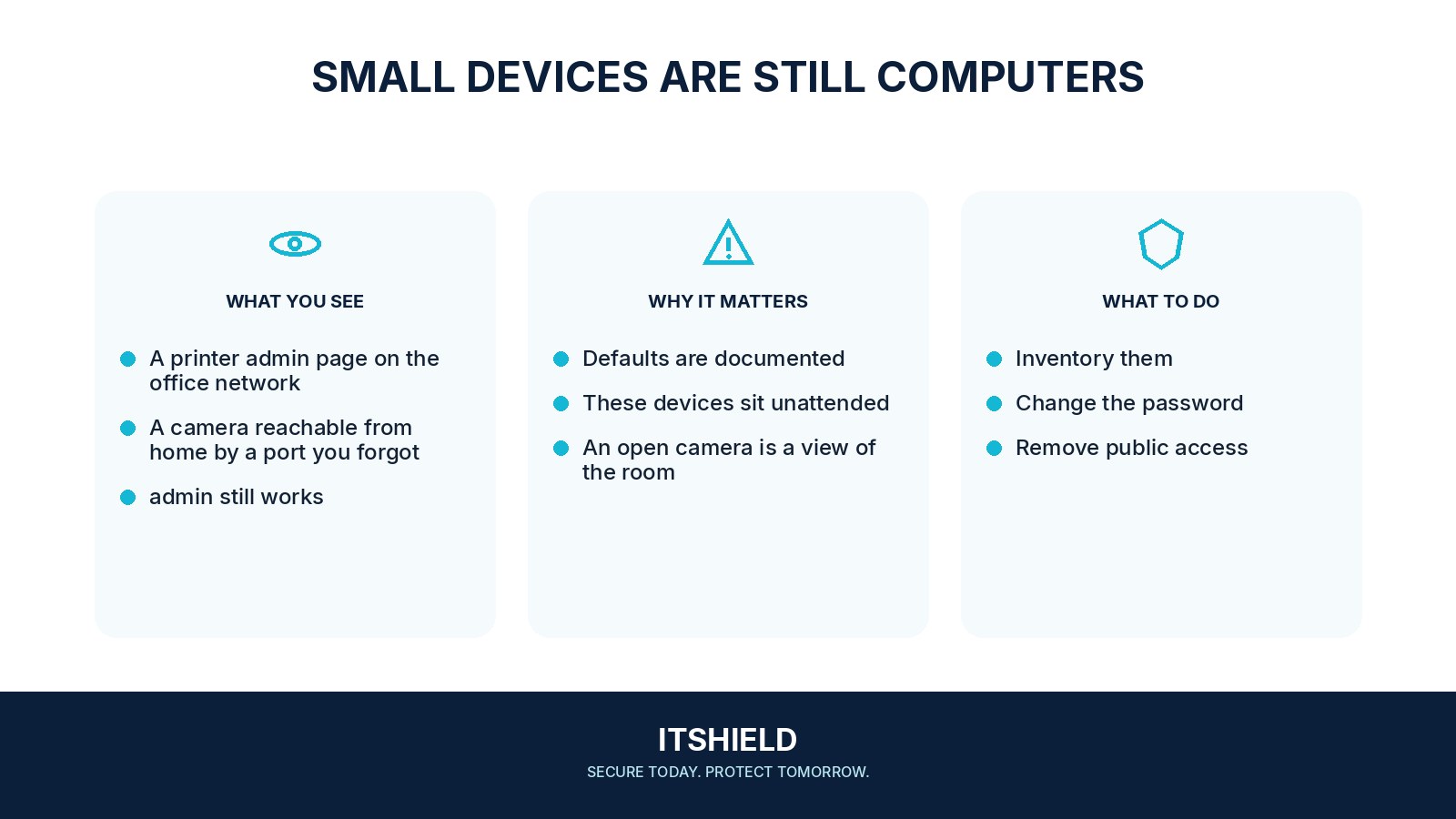
Find the devices, name an owner, and check their support and update status. Review administrator credentials and where management can be reached. A camera needed for one room does not automatically need direct management access from the internet or broad access to the rest of the office network.
- Find
Identify devices and their administrative routes.
- Harden
Review credentials, updates, services, and management exposure.
- Verify
Confirm required functions still work with the new controls.
A practical example
Imagine a printer replaced during an office move. The new model works, but nobody has changed its management login or checked stored documents. The team completes the setup, restricts management access, and records who will maintain it.
What to do next
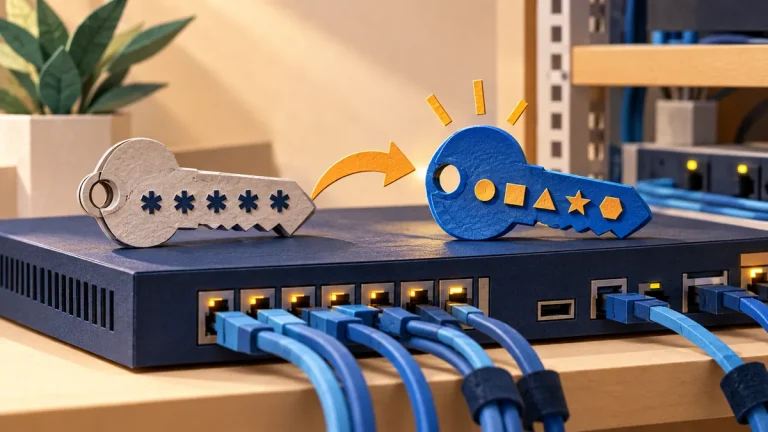
- Replace default or unnecessary shared administrator passwords and access keys with supported unique ones.
- Install official supported firmware and plan replacement when security support ends.
- Restrict management interfaces to approved administrators and networks. Do not expose them to the internet without a specific protected design.
- Disable unused protocols, cloud connections, and remote-support features after checking business dependencies.
- Place devices in an appropriate network segment and allow only the connections needed for their role.
- Review stored data, service passwords and access keys, logs, and secure disposal or reset procedures.
How to check the result
Verify that the device still performs its job and is manageable only through the intended routes. Include it in periodic inventory and retirement checks rather than relying on the installation day alone.
The printer sends scans by email. What else needs review?
Check the mail account or credential it uses, stored address books, document handling, and who can change those settings. The device’s web login is only one part of its access.
Sources and useful guides
The following resources provide background and more detailed guidance. Use the sections that match your service and situation.