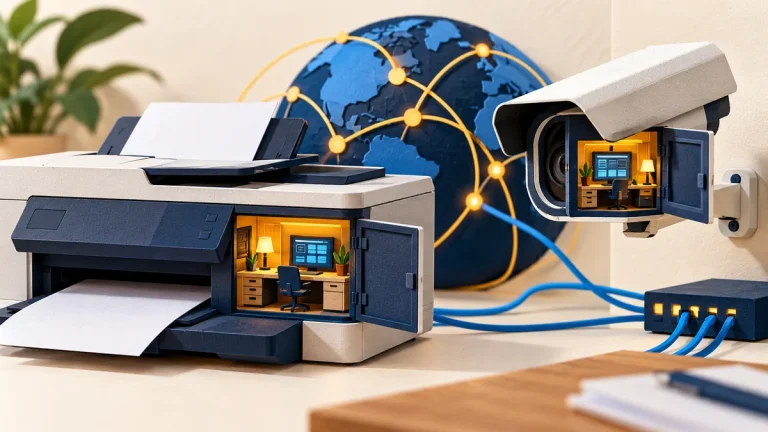

A router or camera may arrive with a default administrator password. That password is for the device’s management settings, which can control access and configuration. Leaving a shared or predictable default in place can make the device easier for someone else to manage without permission.
Understand the idea
During setup, identify the administrator account separately from the Wi-Fi password or viewing account. Use a unique administrator password, update supported firmware, and limit where management is reachable. Record the recovery process so a lost password does not lead to an uncontrolled reset later.
- Inventory
Identify the device, owner, and supported update path.
- Secure
Replace default credentials and restrict management access.
- Verify
Check remote services and confirm the intended users still work.
A practical example
For example, a team installs a camera and changes the viewing password but leaves the administration login untouched. A setup review catches the difference. The owner secures the administrator account and checks that remote management is available only through the intended route.
What to do next
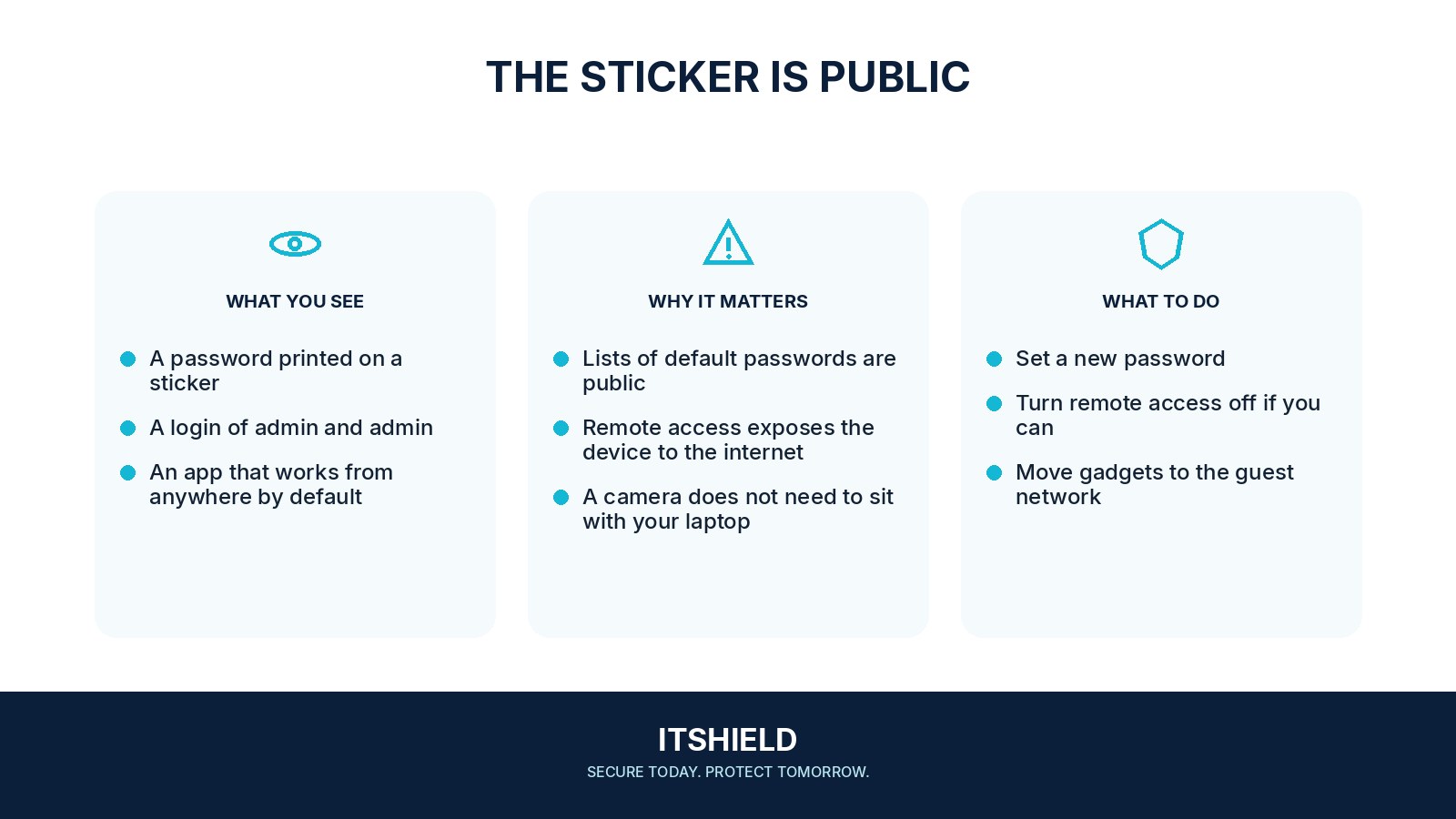
- Connect through the manufacturer's supported local or official-app setup route.
- Create a unique administrator password and store it in a password manager.
- Set a separate strong Wi-Fi password where applicable, and use the supported current wireless-security mode.
- Install official firmware updates and enable a suitable automatic-update option if available.
- Disable internet-facing administration or remote services that you do not need. If remote access is necessary, use the vendor's supported protection and strong account authentication.
How to check the result
Sign out and test the new login through the normal management path. Confirm that the device still performs its job and that an old shared default no longer opens the settings.
I changed the local admin password. Is the cloud account covered?
Not necessarily. The device’s cloud account and remote management may have separate credentials and permissions. Review those routes and remove access you do not need.
Sources and useful guides
The following resources provide background and more detailed guidance. Use the sections that match your service and situation.