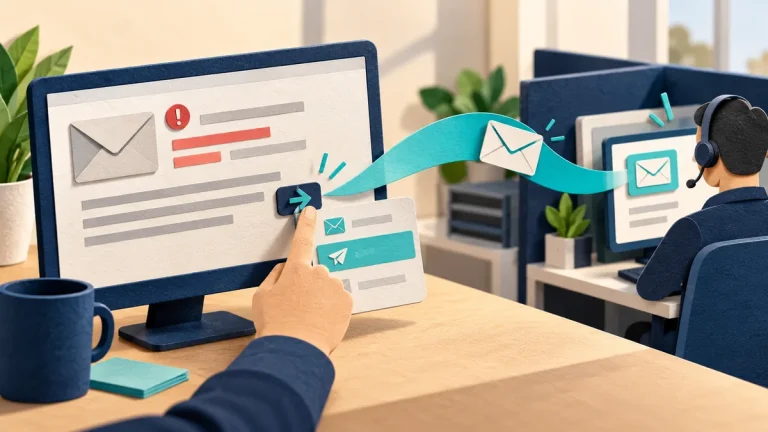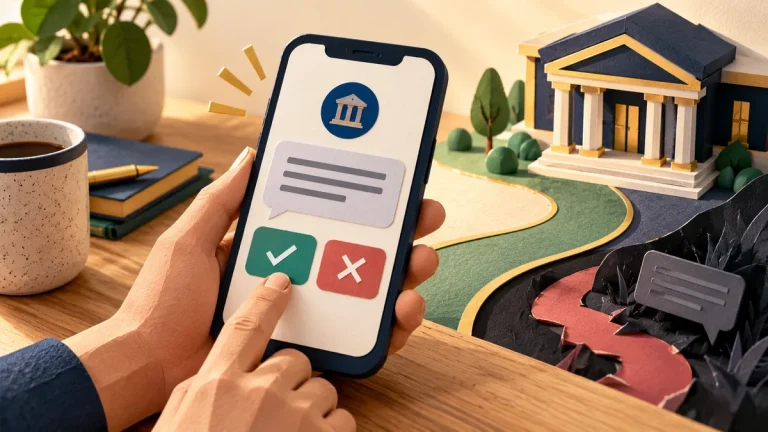

An email filter can reduce suspicious messages, but it cannot decide whether every request is sensible. Phishing is an attempt to persuade someone to reveal information or take an unsafe action. A message may look professional, pass email checks, or even come from a real account that someone else has taken over.
Understand the idea
Read the requested action before judging the appearance. Does the message ask you to sign in, change payment details, download a file, or approve access? For a sensitive action, verify the request through a separate route. A familiar logo or an existing email conversation is useful context, not a final answer.
- Message
The email reaches the inbox.
- Request
Identify the login, payment, download, or approval it wants.
- Verification
Confirm sensitive actions through an independent route.
A practical example
Imagine a colleague sending a document link that opens an unexpected sign-in page. Instead of entering a password, you open the normal document service yourself and check with the colleague through a known contact method. If the account was taken over, this also gives the team a chance to contain it.
What to do next
- Inspect the requested action. Is the message asking for passwords and access keys, a payment change, remote access, or new permissions? Those actions deserve independent verification even when the sender is familiar.
- Use a known route. Open the service from a saved bookmark or its official application. Avoid the message's link when you can find the expected document or alert independently.
- Report uncertainty quickly. Use the organization's reporting button or known security contact. Say whether you clicked, entered information, approved a prompt, or downloaded something.
- Do not investigate by interacting. Do not reply to the sender, test their login page, or send the message to a broad staff list.
How to check the result
When reporting a message, include the sender, time, requested action, and whether anyone clicked or entered details. Use the organization’s reporting route so the original message can be reviewed safely.
The sender passed authentication checks. Can I trust the payment request?
Authentication is useful evidence about message delivery, not proof that the business request is legitimate. Verify changed payment details through a known contact route.
Sources and useful guides
The following resources provide background and more detailed guidance. Use the sections that match your service and situation.