

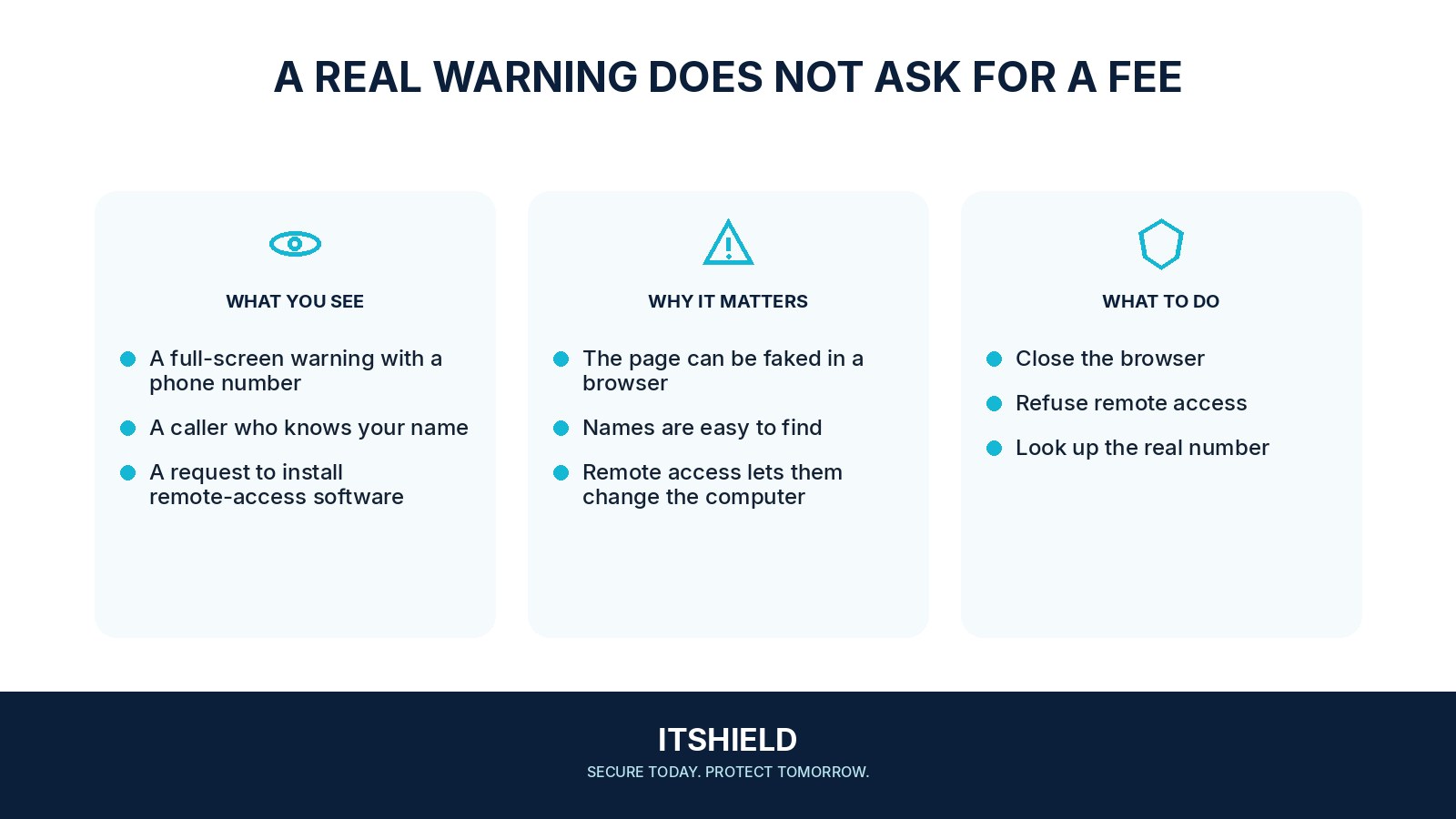
A warning fills the screen and says your computer is infected. It gives a phone number and demands immediate help. This can be a support scam designed to frighten you into paying, installing software, or allowing a stranger to control the device.
Understand the idea
A page can display alarming words without having diagnosed your computer. Do not call a number supplied by the warning. Close the page using normal browser controls if possible. If you need help, contact your real support provider through a number or address you obtained independently.
- Stop
Leave the caller’s or pop-up’s instructions unanswered.
- Verify
Contact your normal support service independently.
- Recover
Review any access, software, or payment you already allowed.
A practical example
For example, a caller offers to remove a threat after you see a pop-up. They ask you to install remote-control software and open online banking. You end the call and speak to your actual support team. If access was already granted, tell them what was installed and what the caller could see.
What to do next
- Do not click its repair, download, or telephone buttons.
- Close the tab or browser using the device's normal controls. If necessary, use the operating system's normal application-closing tools.
- Reopen the browser without restoring the suspicious page. Check for unwanted downloads or notification permissions.
- Use the security tools already supplied or approved for the device if a check is needed. For a work device, report the event to support.
How to check the result
Keep the warning, phone number, payment requests, and timing where practical. Ask trusted support to check the device and any exposed accounts before returning to sensitive work.
I already gave the caller remote access.
Disconnect that remote session and contact trusted support from another route. Explain what was installed, what was entered, and whether any payment was made.
Sources and useful guides
The following resources provide background and more detailed guidance. Use the sections that match your service and situation.