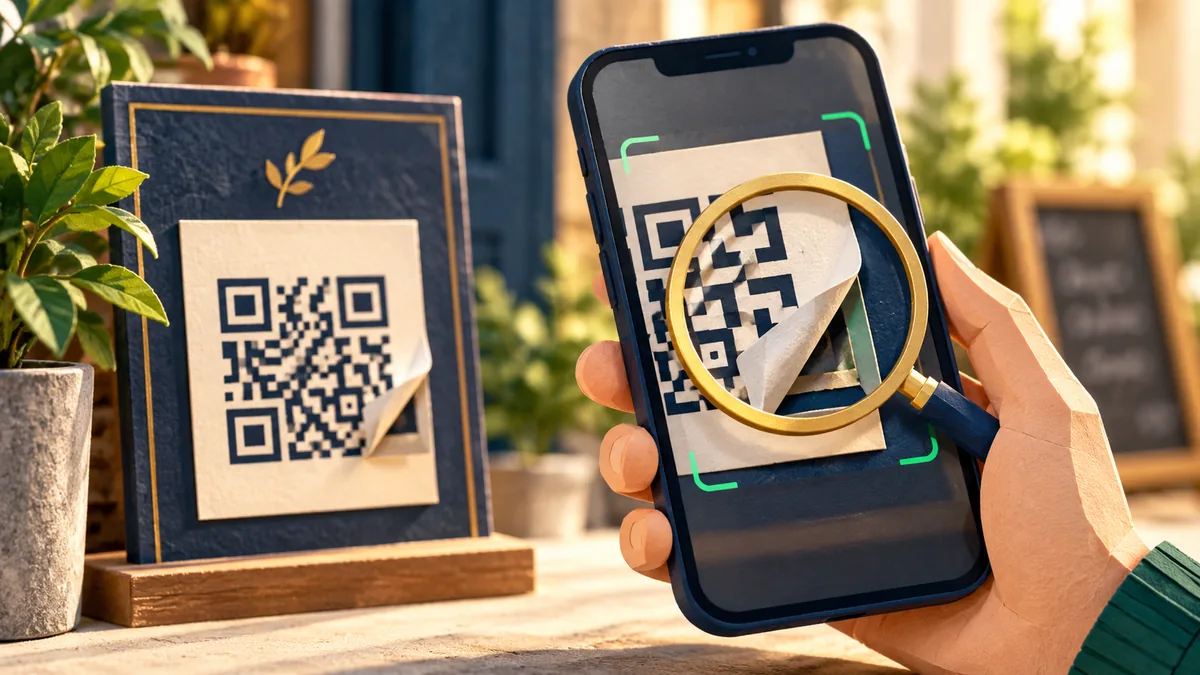
A QR code is a compact way to present information, often a website address. Scanning it does not tell you who chose the destination. Codes on posters, tables, and parking meters can be replaced or covered with stickers, so the surrounding location is only one clue.
Understand the idea
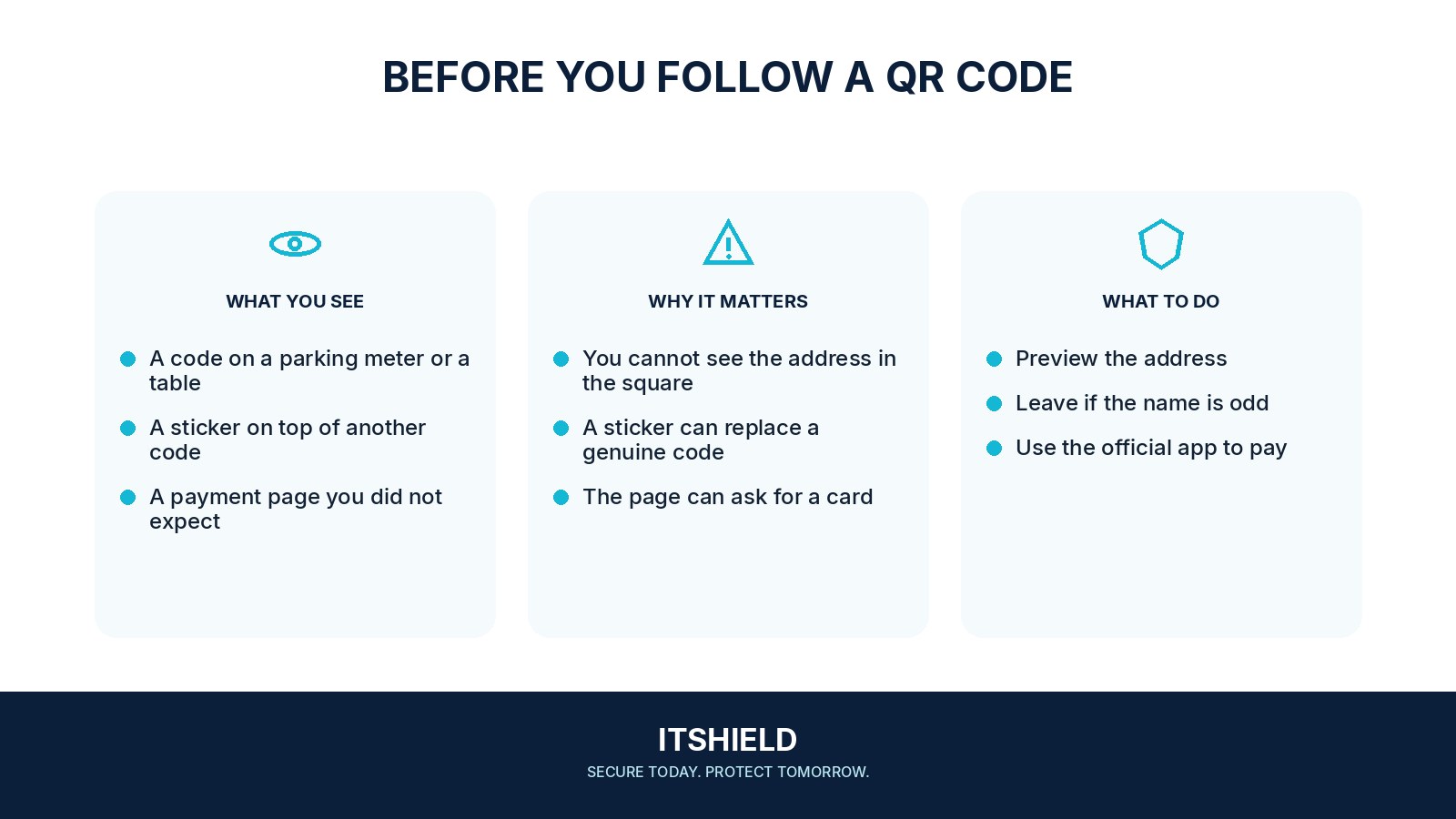
Preview the destination before opening it when your device allows this. Check the domain and ask whether the requested action fits the situation. A menu should not normally require your work login. A payment should go to the operator you intended to pay, through a route you can verify.
- Preview
Read the address shown by your camera.
- Verify
Confirm the real operator for sensitive tasks.
- Decide
Decline unrelated downloads, credentials, or payment requests.
A practical example
Imagine a QR sticker on a parking meter opening a card-payment page. Before entering details, you confirm the parking operator from the meter’s permanent information or its official app. If the destination does not match, you use the verified payment route and report the sticker.
What to do next
- Use the phone's built-in camera or trusted scanning feature. You usually do not need to install a separate scanner from an advertisement.
- Read the previewed address before opening it. If it is shortened or unclear, verify the service through another route for sensitive tasks.
- For parking or payments, confirm the operator and destination using the official app, signage, or an independently found contact.
- Decline unexpected downloads, app installations, certificate requests, or permissions that do not fit the task.
How to check the result
If you already entered payment or login details, contact the relevant provider through its real app or support number. Keep a photo of the code and a record of the destination if available.
A QR sticker on a parking meter asks for a card payment.
Confirm the parking operator through its official app or independently verified information. A sticker, even on a real meter, does not establish who receives the payment.
Sources and useful guides
The following resources provide background and more detailed guidance. Use the sections that match your service and situation.