

An app permission gives software access to a phone feature or type of information, such as the microphone, camera, location, or contacts. The right question is whether that access is needed for the feature you use. Installing an app does not mean every permission request is necessary.
Understand the idea
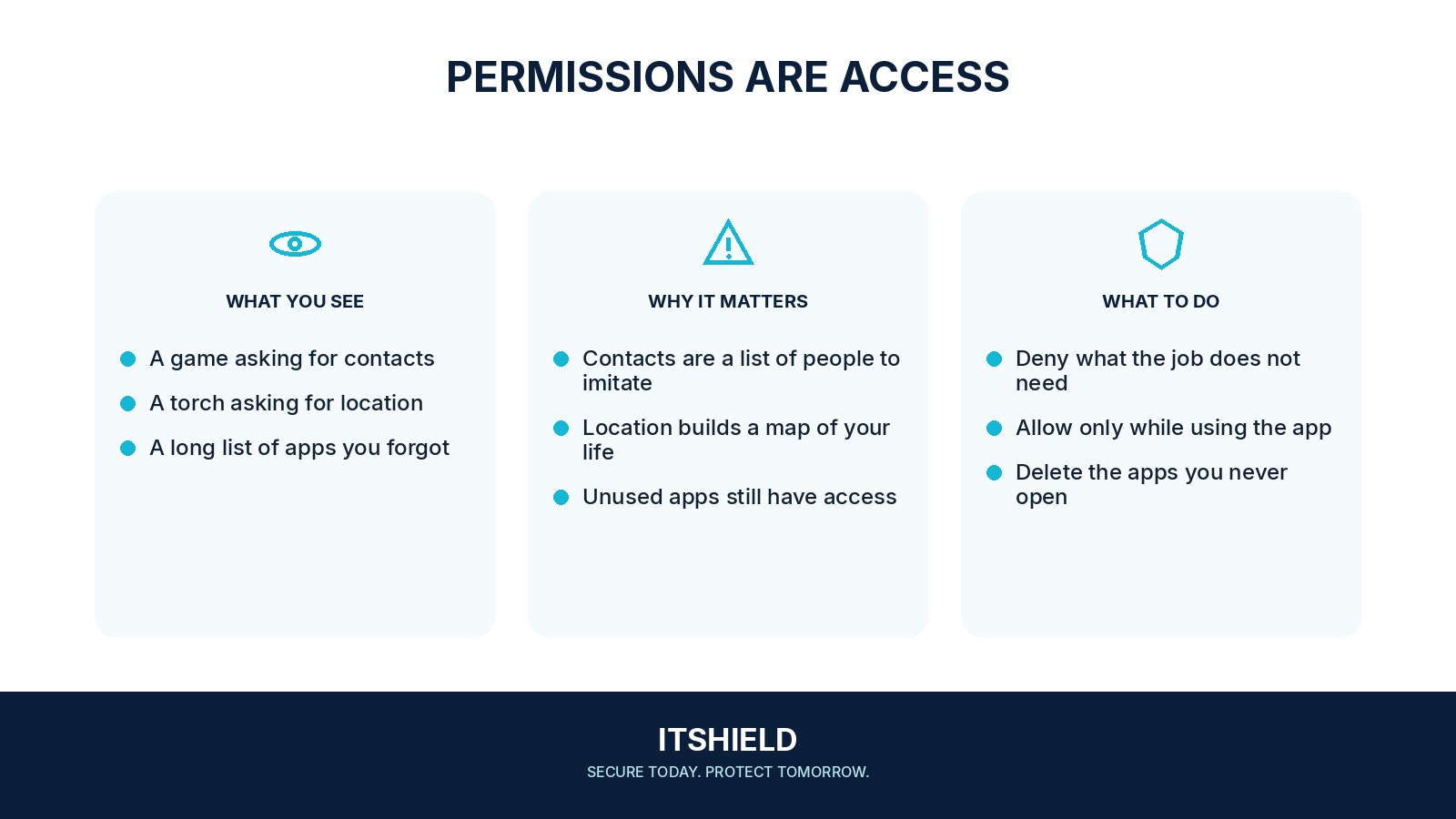
Review permissions in the phone’s own settings. Use a narrower option, such as access while the app is in use or selected photos, when it meets your needs. Remove apps you no longer use and check permissions again after a major update or a change in how you use the app.
- Feature
Identify what you expect the app to do.
- Permission
Connect each requested access right to that feature.
- Review
Limit or remove access that is no longer needed.
A practical example
For example, a scanning app needs the camera to capture a document but also requests contacts and continuous location. You check the publisher’s explanation and allow only what the scanning task requires. If a feature stops working, you can reconsider the specific permission instead of granting everything.
What to do next
- Open the operating system's app-permission settings directly, rather than following an unfamiliar pop-up link.
- Review the most sensitive categories first: location, camera, microphone, contacts, and photos.
- Choose narrower options where supported, such as selected photos, approximate location, or access only while using the app.
- Examine special access separately, including accessibility services, notification reading, device administration, or screen recording where available.
- Remove permissions or uninstall apps you no longer use. Test the features you still need afterward.
How to check the result
Test the feature after changing a permission. Remember that revoking access limits future collection through that permission; it does not necessarily remove information the app already received.
A simple app requests contacts, location, and microphone access.
Pause and check the developer and the feature that needs each permission. Deny unnecessary access and choose an alternative if the app cannot work proportionately.
Sources and useful guides
The following resources provide background and more detailed guidance. Use the sections that match your service and situation.