

Software updates repair faults, improve compatibility, and often fix security weaknesses. The challenge is to install real updates through the product’s trusted route. A website banner claiming your device is out of date can instead lead to an unsafe download.
Understand the idea
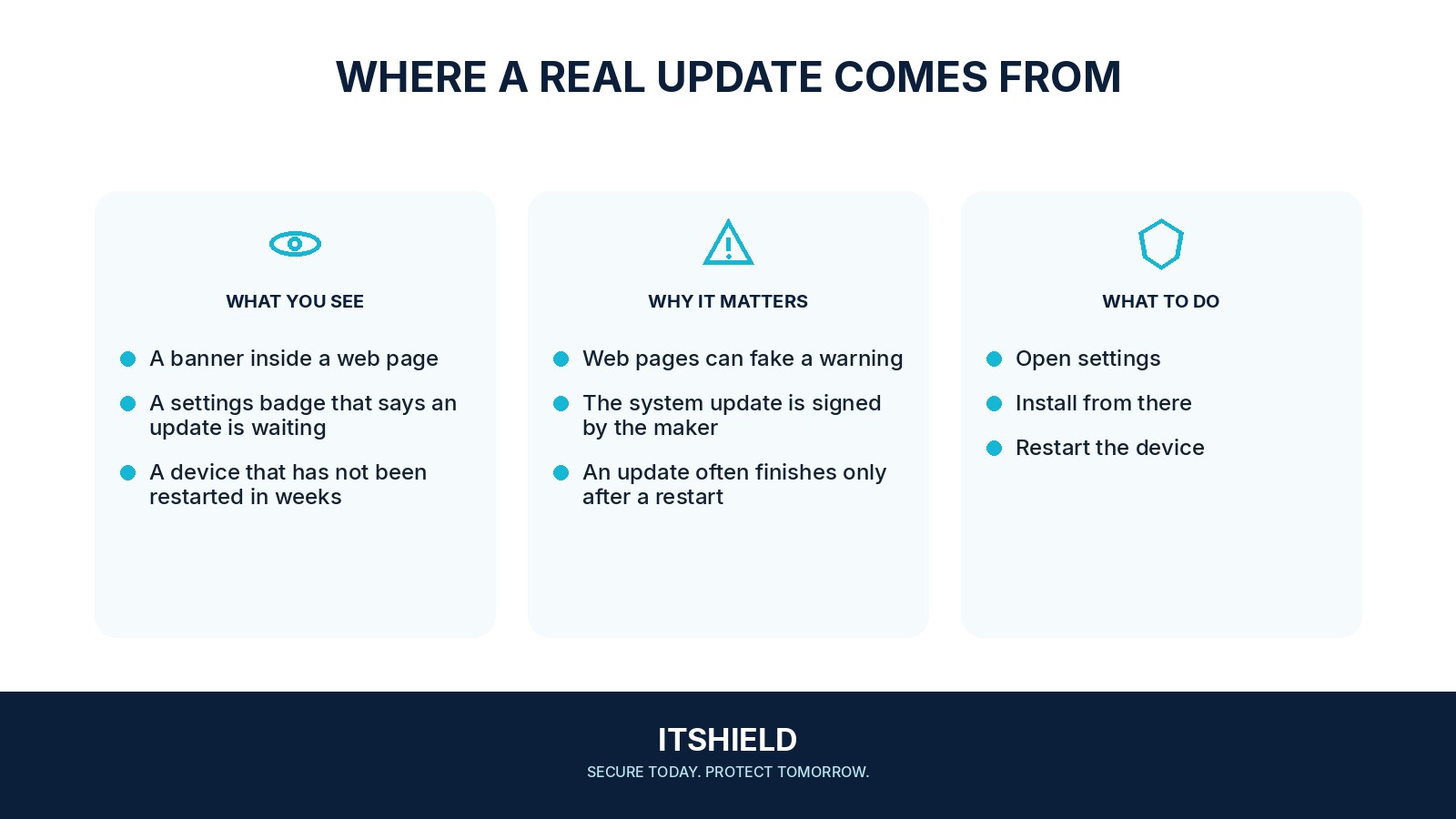
Use the device’s settings, the application’s built-in updater, or the publisher’s official download page. Keep a sensible restart routine and use automatic updates where they fit your needs. For work systems, follow the team’s change process so important software and recovery options are checked.
- Source
Open the installed app or system settings yourself.
- Update
Use its supported update path or verified publisher.
- Check
Confirm the version and that normal work still functions.
A practical example
Imagine a browser page telling you to install an urgent video update. You close the page and check the actual application’s update menu. If an update is needed, you obtain it there. On a work device, you ask support rather than using the download link in the warning.
What to do next
- Back up important data and make sure the device has enough power and storage for the update.
- Review the update's source and, for important work systems, compatibility and rollback arrangements.
- Allow the legitimate update to finish, including a required restart. A downloaded update may not yet be active.
- Reopen the update settings and confirm the installed version or that the pending update is cleared.
- Test the features you rely on, especially sign-in, backup, and essential work applications.
How to check the result
Confirm the installed version and whether a restart is still pending. A downloaded installer or a dismissed notification does not prove that the update was applied.
A browser page says my computer needs an urgent update.
Close or leave the page and check updates through the operating system or affected application. Do not install a file merely because a website displays an alarming message.
Sources and useful guides
The following resources provide background and more detailed guidance. Use the sections that match your service and situation.